
Download Lightshot – Screenshot Tool
Capture any screen area in two clicks. Add annotations, arrows, and text — then share instantly with a free prnt.sc link. Available for Windows and Mac.
Key Features
Everything you need to capture, edit, and share screenshots — built into one lightweight tool.
Two-Click Screen Capture
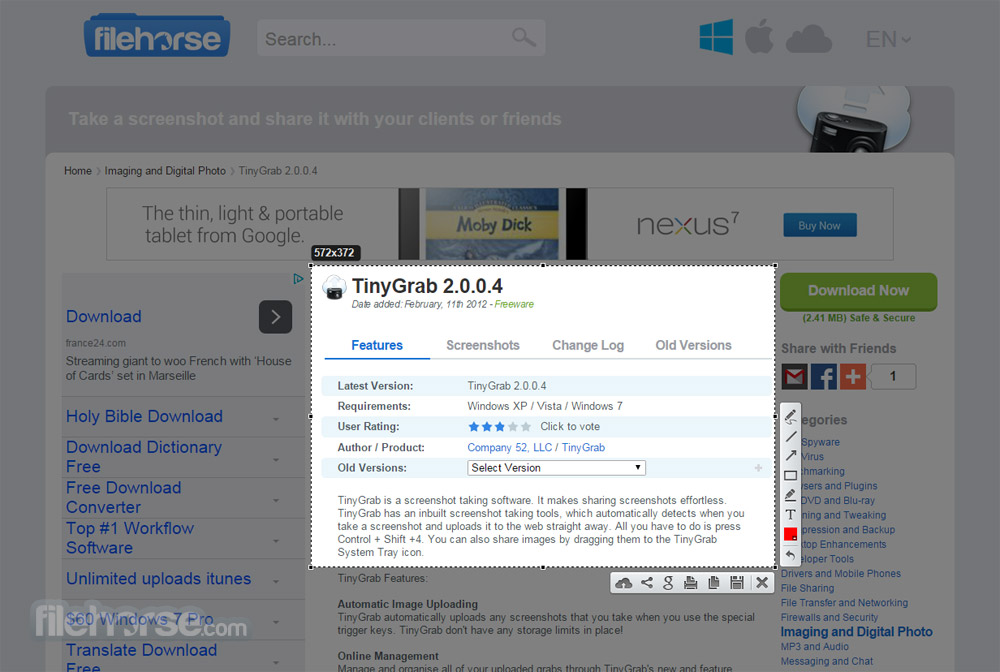
Select any screen area by clicking and dragging. No complex menus or keyboard combos — press Print Screen, draw your rectangle, and the capture is ready. The selection overlay includes drag handles for precise adjustments.
Built-in Annotation Editor
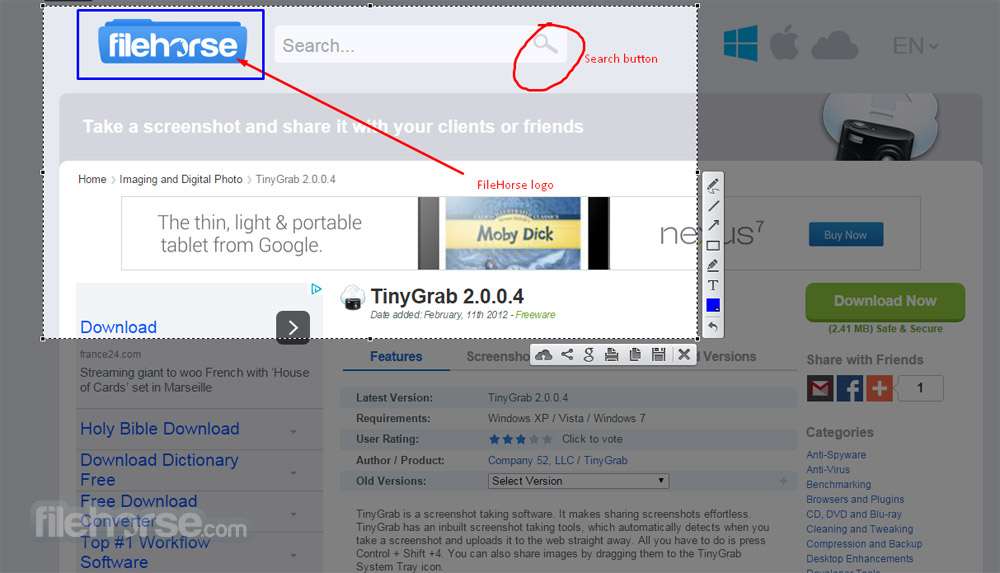
Add text, arrows, lines, rectangles, and freehand drawings directly onto your screenshot before saving or sharing. Highlight important areas or mark up bugs without opening a separate image editor.
Instant Cloud Upload
Upload any screenshot to Lightshot’s cloud servers with a single click. You receive a short prnt.sc link immediately — copy it, paste it, and share it anywhere. No account required for basic uploads.
Clipboard Integration
Copy captures directly to your clipboard for instant pasting. Drop screenshots into documents, emails, chat windows, or image editors without saving a file first. Works with any application that accepts pasted images.
Similar Image Search
Perform a visual reverse image search using Google or TinEye directly from your captured screenshot. Useful for finding the source of images, identifying products, or locating higher-resolution versions.
Custom Hotkey Support
Reassign the screenshot trigger from the default Print Screen key to any key combination you prefer. Set up shortcuts that don’t conflict with your other applications through the settings panel.
Multiple Save Formats
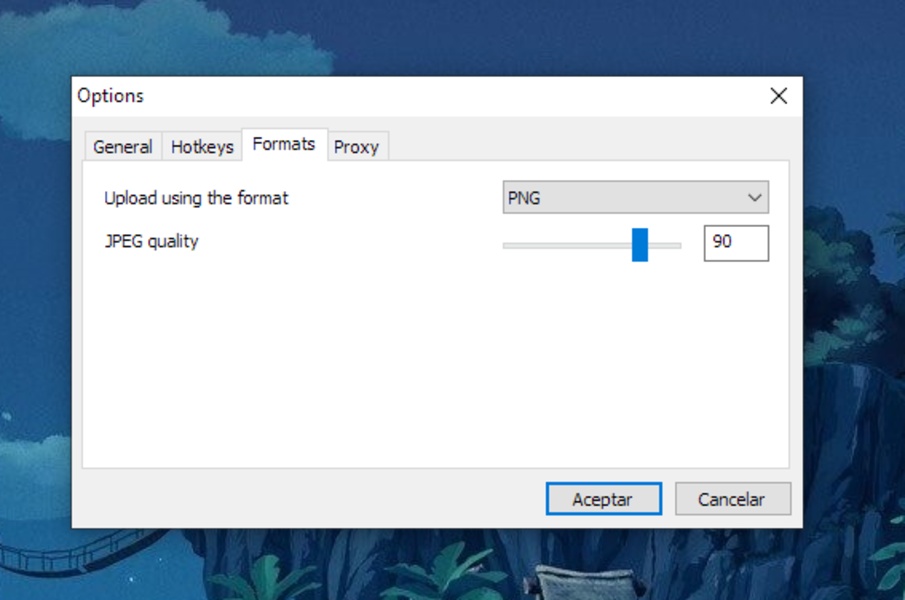
Save captured screenshots as PNG, JPG, or BMP files to any folder on your local drive. Choose your default format and save location in the preferences for a streamlined workflow.
Online Screenshot Gallery
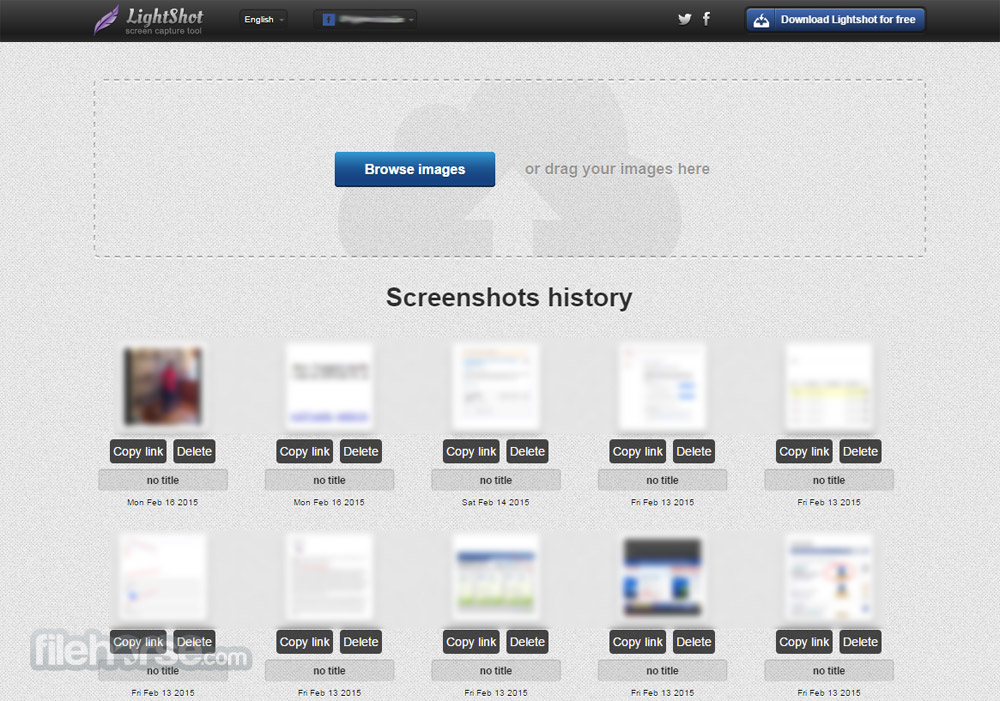
Create a free account to store your screenshots in a personal prnt.sc gallery. Browse, manage, and organize your images in one place, and share them on social media platforms from your dashboard.
Lightweight and Fast
The entire installer is just 2.66 MB. Lightshot uses minimal CPU and RAM while running in the background, launches in under a second when you press the hotkey, and never slows down your system.
System Requirements
Lightshot is designed to run on virtually any modern computer. Here are the minimum and recommended specifications for the best experience.
| Component | Minimum | Recommended |
|---|---|---|
| Operating System | Windows 7 (32-bit or 64-bit) | Windows 10/11 (64-bit) |
| Processor | 1 GHz Intel or AMD | 2 GHz dual-core or faster |
| RAM | 1 GB | 2 GB or more |
| Disk Space | 20 MB free | 50 MB free |
| GPU | Not required | Not required |
| Display | Any screen resolution | 1920×1080 or higher |
| Internet | Not required for local capture | Broadband (for cloud upload & image search) |
Download Lightshot 5.5.0.7
Get the latest version of Lightshot for your platform. The installer is lightweight, free, and takes less than a minute to set up.
Latest Release — Version 5.5.0.7 • Released February 2025
Also available as browser extensions for Chrome, Firefox, Opera, and Internet Explorer.
Screenshots
See Lightshot in action — real screenshots of the capture, editing, and sharing experience.

How to Install Lightshot
Follow this step-by-step Lightshot setup guide to go from download to your first screenshot in under five minutes.
Downloading Lightshot
Visit the official Lightshot website at app.prntscr.com. Click the download button for your operating system — choose Windows or Mac. The download starts automatically.
Your browser downloads the installer file. For Windows, this is setup-lightshot.exe (approximately 2.66 MB). For Mac, it’s Lightshot_Screenshot.dmg. Save it to a location you can find easily, like your Downloads folder.
Installing on Windows
Locate the downloaded setup-lightshot.exe file and double-click it to begin installation. If Windows SmartScreen displays a security prompt, click “More info” and then “Run anyway” — the installer is safe.
If a User Account Control (UAC) dialog appears asking “Do you want to allow this app to make changes to your device?”, click Yes to proceed.
Read and accept the Skillbrains license agreement. Click Next to continue.
Important: During installation, the installer may present optional third-party software offers such as browser toolbars or search engine changes. Carefully read each screen and uncheck or decline any offers you do not want installed.
Choose the installation location. The default folder works for most users. Click Install and wait approximately one minute for the process to complete. Click Finish when done.
Initial Setup and Configuration
After installation, Lightshot starts automatically and adds a purple feather icon to your system tray (the notification area near your clock). If you don’t see it, click the small arrow (^) in the taskbar to reveal hidden icons.
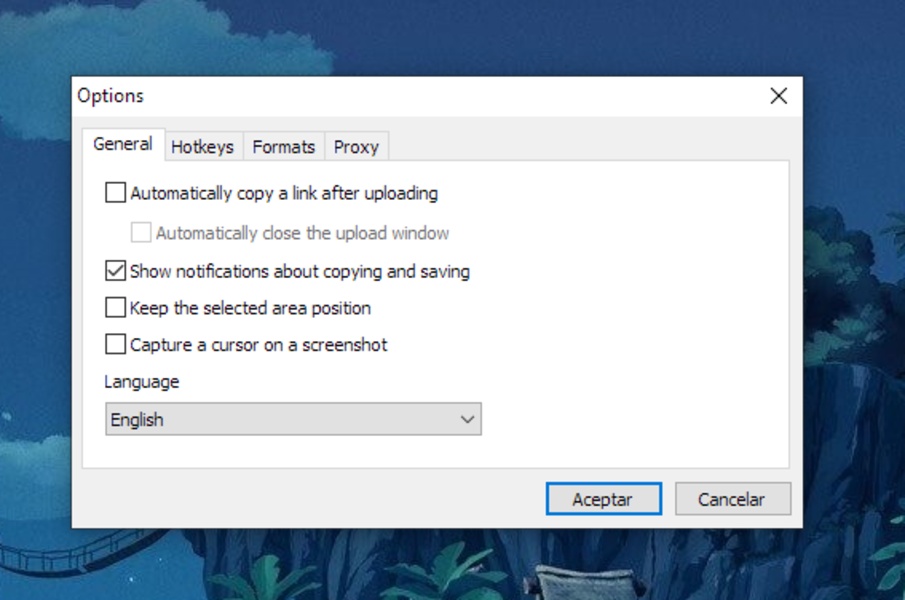
Right-click the Lightshot system tray icon and select Options (or Settings). Here you can change the screenshot hotkey, set the default image format (PNG, JPG, or BMP), choose where screenshots are saved, and enable or disable cursor capture.
Taking Your First Screenshot
Press the Print Screen key (or your custom hotkey). Your screen dims slightly and a crosshair cursor appears. Click and drag to select the rectangular area you want to capture. Release the mouse button to confirm the selection.
Two toolbars appear next to your selection. The vertical toolbar (right side) contains annotation tools: pen, line, arrow, rectangle, text, marker, and color picker. The horizontal toolbar (bottom) contains action buttons: save to file, copy to clipboard, upload to prnt.sc, share on social media, search similar images, and print.
Choose your action. Click the cloud upload icon to get a shareable prnt.sc link instantly, or click the floppy disk icon to save the file locally. Press Esc to cancel the capture at any time.
Frequently Asked Questions
Is Lightshot free to download?
Yes, Lightshot is completely free to download and use. There are no premium tiers, no watermarks, no trial periods, and no hidden charges. The full version with all features — including cloud upload, annotation tools, and reverse image search — is available at no cost. Lightshot has been free since its initial release in 2009 by Skillbrains.
Is Lightshot safe for Windows 11?
Yes, Lightshot is safe to use on Windows 11. The software is developed by Skillbrains, a legitimate company, and the installer downloaded from the official site (app.prntscr.com) does not contain malware or viruses. During installation, you may be offered optional third-party software bundles — read each screen carefully and decline any offers you don’t want. Always download from the official source to stay safe.
What are the system requirements for Lightshot?
Lightshot has very modest requirements: any processor at 1 GHz or faster, 1 GB of RAM, and 20 MB of free disk space. It runs on Windows 7, 8, 8.1, 10, and 11 (both 32-bit and 64-bit). No GPU is needed and the .NET Framework is not required. An internet connection is only necessary for cloud uploads and reverse image search — local captures work fully offline.
How do I update Lightshot to the latest version?
Lightshot does not include a built-in auto-updater. To update, visit the official website at app.prntscr.com and download the latest installer. Run the new setup file — it updates your existing installation without losing your settings. The current version is 5.5.0.7, released in February 2025.
Does Lightshot work on Mac?
Yes, Lightshot is available for macOS 10.7 (Lion) and later, 64-bit only. Download the Mac version (Lightshot_Screenshot.dmg) from the official website. The Mac version offers the same core capture and annotation features as the Windows version, with the interface adapted for macOS conventions and keyboard shortcuts.
Lightshot vs ShareX — which is better?
It depends on your needs. Lightshot is ideal if you want a simple, lightweight tool for quick screenshots with basic editing and instant sharing via prnt.sc. ShareX is better for power users who need advanced features like scrolling capture, GIF/video recording, OCR text recognition, automation workflows, and dozens of upload destinations. Lightshot takes seconds to learn; ShareX has a steeper learning curve but far more capabilities. Choose Lightshot for simplicity, ShareX for power.
How do I change the Lightshot screenshot hotkey?
Right-click the Lightshot icon in your system tray (near the clock) and select Options or Settings. Navigate to the Hotkeys section. Click the current hotkey field and press the new key combination you want — for example, Ctrl+Shift+S. Click OK to save. The new shortcut takes effect immediately without restarting the application.
Why does Lightshot show a black screen when I take a screenshot?
A black screen usually indicates a GPU or display driver conflict. Try these fixes in order: update your graphics drivers to the latest version from your GPU manufacturer (NVIDIA, AMD, or Intel), try running Lightshot as Administrator (right-click the icon and select “Run as administrator”), and check if your antivirus software is blocking Lightshot’s screen capture access. Restarting your computer after updating drivers often resolves the issue.
Are Lightshot screenshots private?
No — screenshots uploaded to prnt.sc are accessible to anyone with the link. While the links are not indexed by search engines by default, they are not encrypted or password-protected. If someone discovers or guesses your prnt.sc URL, they can view the screenshot. Do not upload sensitive, personal, or confidential information to prnt.sc. For private screenshots, save them locally instead of uploading.
How do I fix Lightshot not working after a Windows update?
First, restart your computer. If Lightshot still doesn’t respond, right-click the system tray icon, select Quit, then relaunch Lightshot from the Start menu. If the problem persists, reinstall Lightshot by downloading the latest version from app.prntscr.com. Major Windows updates can occasionally reset hotkey registrations or permission settings that Lightshot depends on.
Can I use Lightshot without creating an account?
Yes, absolutely. An account is only needed if you want to save screenshots to a personal online gallery on prnt.sc. All core features — capturing, editing, saving locally, copying to clipboard, and even uploading individual screenshots for sharing — work without signing in or creating any account.
How do I delete my screenshots from prnt.sc?
If you uploaded screenshots while logged in to your Lightshot/prnt.sc account, go to prntscr.com, sign in, navigate to your gallery, and delete individual images. If you uploaded without an account, you cannot delete those screenshots since there is no way to verify ownership. This is why you should avoid uploading sensitive or personal content to the service.
Why is my Lightshot system tray icon missing?
The icon may be hidden in the taskbar overflow area. Click the small upward arrow (^) in your taskbar to check hidden icons. If Lightshot isn’t running at all, launch it from the Start menu or its installation folder. To ensure Lightshot starts automatically with Windows, open its settings and enable the “Run at startup” option.
Does Lightshot work offline?
Yes, Lightshot works offline for local screen captures. You can select areas, annotate screenshots, save to disk, and copy to clipboard without any internet connection. Only the cloud upload to prnt.sc and the similar image search features require an active internet connection. All other functionality is fully available offline.
What are the best Lightshot alternatives?
The most popular Lightshot alternatives include ShareX (free, open-source, feature-rich with video recording and automation), Greenshot (free, open-source, great for office workflows), Windows Snipping Tool (built-in, no install needed), Snagit by TechSmith (paid, professional-grade editing and documentation), Flameshot (free, open-source, popular on Linux), and Screenpresso (free tier with watermark, includes video capture). ShareX is the closest competitor in terms of popularity and overall capability.